
How to Connect Zendesk to Claude
Swifteq's MCP Server connects Claude to your Zendesk, so you can ask about your tickets, macros, and help center in an ordinary Claude chat. For example, you could ask what caused last week's spike in tickets, or which open tickets are closest to breaching their SLA. You add it to Claude once as a custom connector, and it can only read your Zendesk until you give it write access.
- Works in Claude on the web, Desktop, and Claude Code
- Sign in with your Swifteq account, no API keys
- Ticket conversations and PII from Zendesk are never stored
- Free for 500 calls a month per Zendesk account
No credit card required.

What You Need Before You Start
A Zendesk account
It works with Zendesk Support and Zendesk Suite. Admins and agents get the most out of it, because Claude can do whatever their Zendesk role allows. Light agents can still connect: they can read tickets and add internal notes, but Zendesk doesn't let them reply publicly or change fields.
A paid Claude plan
Custom connectors need Claude Pro, Max, Team, or Enterprise, so Claude's free plan doesn't offer them. On Team and Enterprise, your Claude admin may need to allow custom connectors first.
A free Swifteq account
It holds the connection to your Zendesk. It's also where an account owner decides what Claude is allowed to change.
How it works
Connect Zendesk to Claude in Four Steps
These steps are for Claude on the web and Claude Desktop. If you use Claude Code, the next section has the one command you need.
- 1
Create your free Swifteq account
Sign up and authorize your Zendesk account, so Swifteq can ask Zendesk for data whenever Claude needs it. Choose read only if you only want Claude to read. Choose read and write if you'd like it to add internal notes (comments only your agents can see) or update tickets, because adding write access later means authorizing again.
- 2
Add the connector in Claude
A custom connector is a tool you add to Claude yourself by its web address. In Claude, open Settings → Connectors. In Claude Desktop, you can also click Customize in the left menu, then Connectors. Click +, then Add custom connector. Name it something you'll recognize, such as Zendesk MCP Server, paste
https://mcp.swifteq.com/api/mcp/mcpas the URL, and click Add.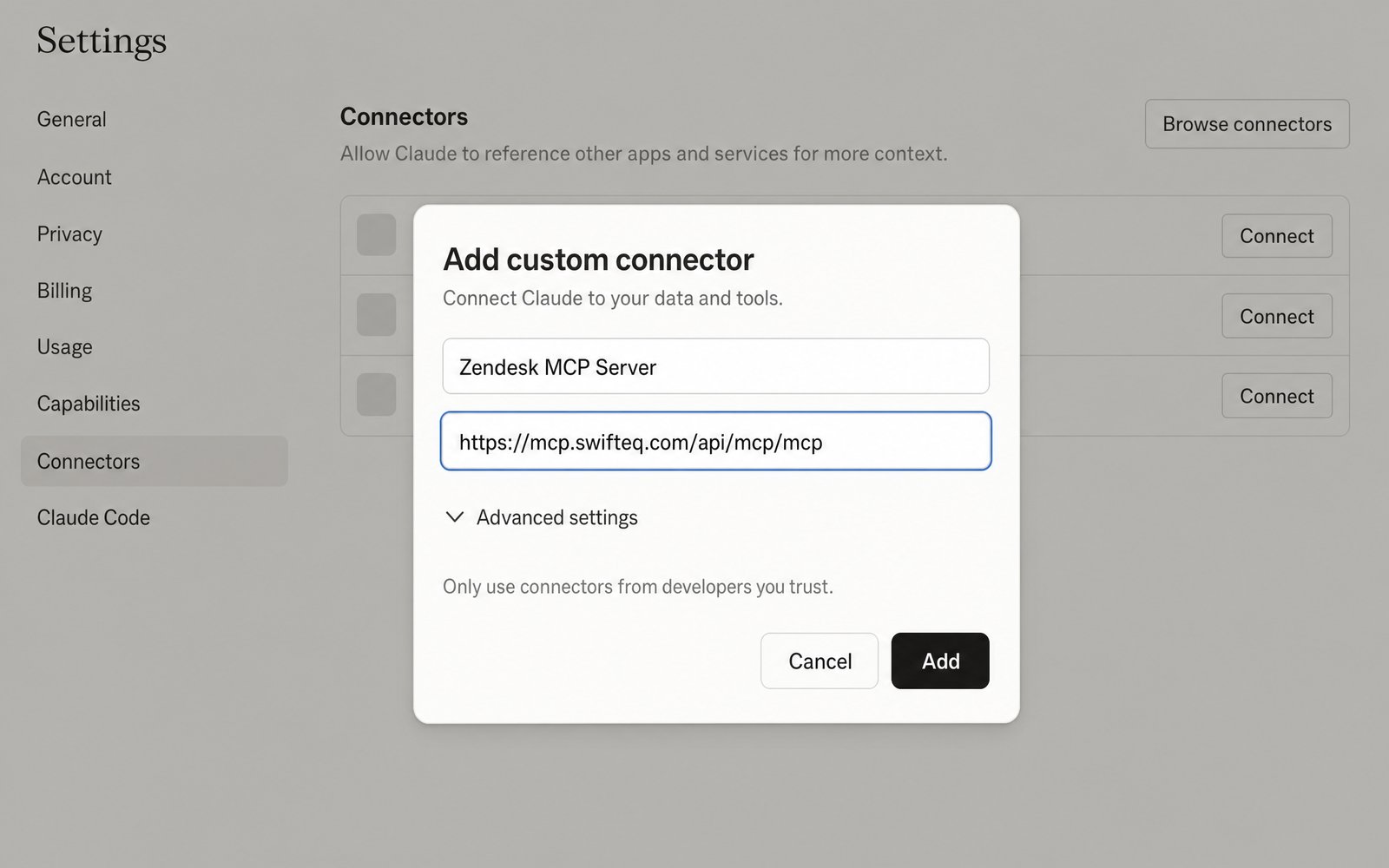
- 3
Connect and sign in
Click Connect on the new connector and sign in with your Swifteq account. Claude then confirms the connection and lists the Zendesk tools it can use.
- 4
Switch it on in a chat
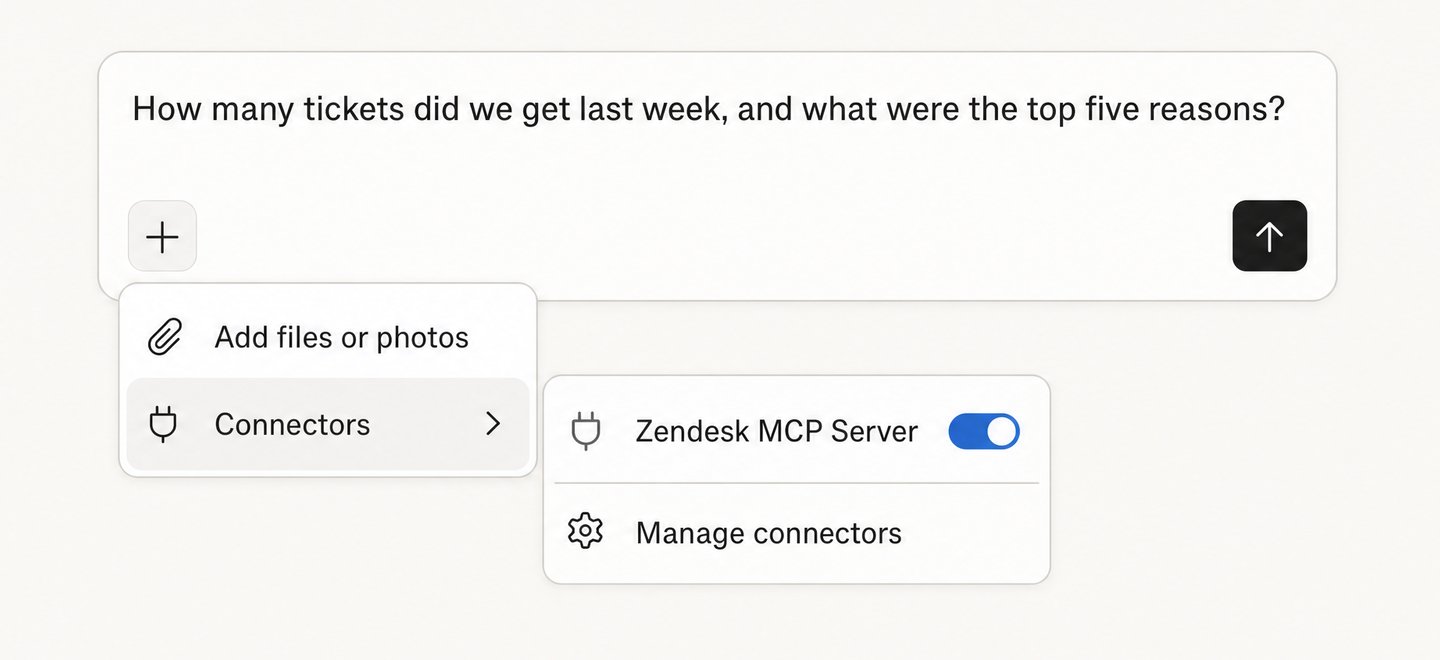
Claude doesn't turn a connector on in every chat. In a new chat, click +, choose Connectors, and switch on Zendesk MCP Server. Then try a first question, such as “How many tickets did we get last week, and what were the top five reasons?”
Connecting Claude Code
Claude Code uses the same Swifteq sign-in with one extra setting. The sign-in has to come back on port 8080, so the command ends with --callback-port 8080:
claude mcp add zendesk-mcp https://mcp.swifteq.com/api/mcp/mcp \
  --transport http --callback-port 8080
Then run /mcp in Claude Code, select zendesk-mcp, and finish signing in in your browser. Without the port setting, Claude Code picks a random port, and the sign-in fails with “Callback URL mismatch”.
What to Ask Claude Next
Once Claude is connected, these pages show what support teams ask it most, with example prompts for each.
Reports and dashboards
Build the weekly report or dashboard you've always wanted from your own Zendesk data. See examples
Ticket QA
Review last month's closed tickets, including the ones your Zendesk AI agent handled on its own. See examples
SLAs
See which open tickets are closest to breaching their SLA, and how each group did last week. See examples
Macros
Find the macros nobody uses or that overlap, and get suggestions for clearer wording. See examples
Help center
Find the questions agents keep answering without an article, and update articles after a release. See examples
Your Zendesk setup
Find the triggers that haven't fired in a month, and the agents who haven't signed in for weeks. See examples
The queue
Decide what needs attention first, and have replies drafted as internal notes for your agents to check. See examples
Frequently Asked Questions
Does Claude have a built-in Zendesk connector?
Not as of October 2026. Claude's connector directory doesn't list a Zendesk connector, so you add Swifteq's MCP Server yourself as a custom connector, as in the steps above. Zendesk announced an MCP server of its own in May 2026, but it isn't available yet. Both use the same protocol, so Claude can connect to either one, or to both. See how the two compare.
What does the Claude connector in Zendesk do?
It works the other way round. Zendesk's Claude connector lets the workflows you build with Zendesk's action builder send text to Claude, for example to summarize a ticket or detect its sentiment. It doesn't let you open Claude and ask about your Zendesk, which is what the MCP Server does, and you can use both.
Why does Claude ask before every tool call?
That's Claude's own permission setting, and you can change it. Claude lists the MCP Server's tools in two groups: read-only tools, and tools that change Zendesk. A common setup is Always allow for the read-only group and Needs approval for the rest. That way Claude can read without stopping, and you still check anything it wants to change.
Why don't I see Add custom connector?
Usually because of your Claude plan, since custom connectors need Claude Pro, Max, Team, or Enterprise. On Team and Enterprise, your Claude admin may also need to allow custom connectors for your organization.
Claude Code was connected, and now the sign-in fails. What do I do?
Run /mcp, choose Clear authentication for zendesk-mcp, and sign in again. Claude Code sometimes forgets the port setting when it signs in again, and a fresh sign-in fixes it.
Can my whole team use it?
Yes, and it costs less on one account. The account owner invites colleagues to the same Swifteq account. Each person then adds the connector in their own Claude and connects their own Zendesk login. That way everyone works with their own Zendesk permissions, and their changes show under their own name in Zendesk.
What does it cost?
It's free for 500 calls a month per Zendesk account, shared by everyone at your company. Above that, €49 a month covers the account and its first user, and each extra user is €9 a month, so a team of 10 pays €130 a month. A call is one action Claude takes in Zendesk, so searching tickets and then opening three of them counts as four calls. See pricing.
Can Claude change or delete things in Zendesk?
Only if you allow it, and it can't delete anything. Claude can only read until you authorize write access. With write access, it can add internal notes, update tickets, and draft help center articles. Public replies, publishing articles, changes to macros, users, and organizations, and merging tickets each stay off until an account owner turns them on.
Guides and Resources
- Zendesk MCP Server: features, security, and pricing
- Swifteq vs Zendesk's own MCP Server, compared
- Claude Skills for Zendesk: 9 practical use cases
- How we keep our help center articles and screenshots up to date with Claude
- Our help center: connecting Claude to the MCP Server
- Our help center: write permissions for the MCP Server
Connect Claude to Your Zendesk
Free for 500 calls a month. No credit card required.
Page last updated