
How to Bulk Import Articles Into Zendesk With Claude or ChatGPT
Swifteq's MCP Server connects Claude, ChatGPT, or another AI assistant to your Zendesk, so you can move a whole knowledge base into your help center instead of copying articles one at a time. Give it the export from your old help center, a folder of documents, or a set of translations, and it creates the categories, sections, and articles for you. Everything it imports is saved as a draft, so nothing goes live until your team has checked it.
- Import from an export, documents, or another brand
- Categories and sections created to match
- Translations added to the right articles
- Every article saved as a draft for review
Free for 500 calls a month per Zendesk account. No credit card required.
Zendesk Article Import Examples
Each example below starts with one request typed into Claude. The screenshots use a made-up outdoor gear store, Larkspur Outdoor, so the articles, sections, and numbers only show the kind of answer you'd get.
Move an Old Help Center Into Zendesk
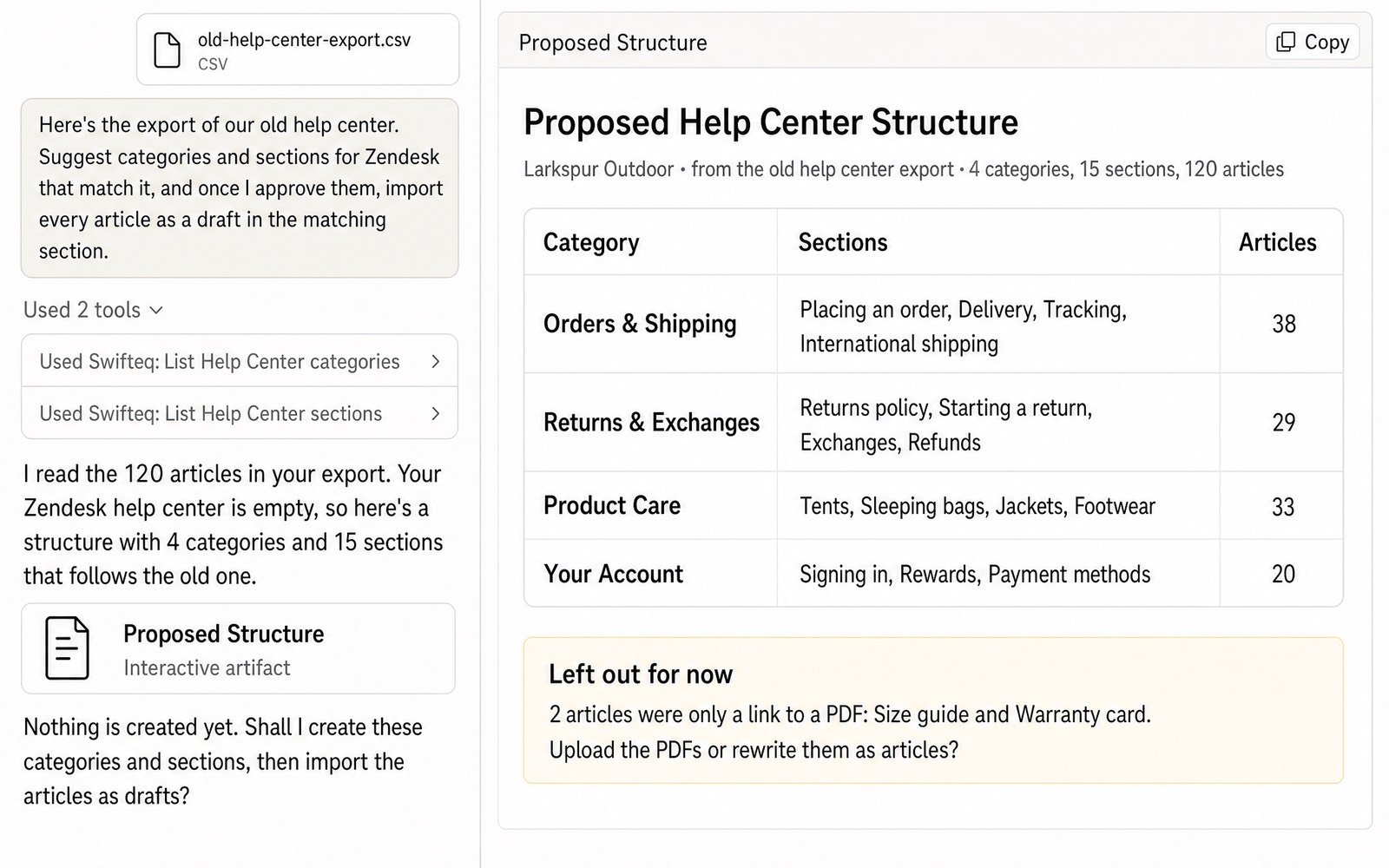
Switching helpdesks usually means rebuilding the help center by hand, because Zendesk has no built-in way to import articles. Its own guide points to the Help Center API, copy and paste, or a migration partner. Instead, give Claude the export from your old help center. It reads every article, suggests categories and sections that match how the old one was organized, and creates them once you've approved the structure. Then it imports each article as a draft in the right section and lists any it couldn't import, such as an article that was only a link to a PDF.
- “Here's the export of our old help center. Suggest categories and sections for Zendesk that match it, and once I approve them, import every article as a draft in the matching section.”
Turn Documents Into Help Center Articles
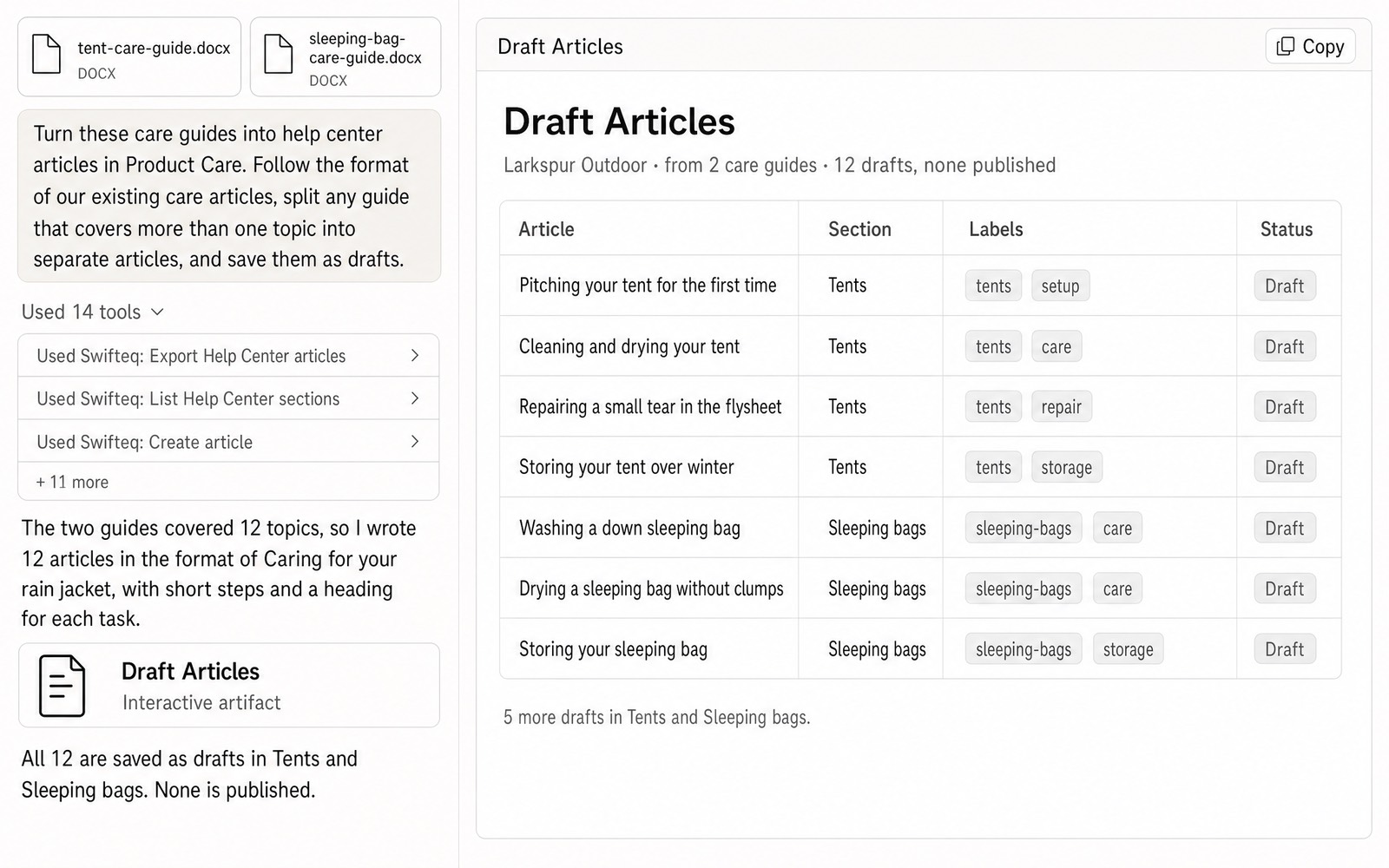
A lot of useful knowledge lives outside the help center, in product guides, onboarding documents, and the notes your team keeps in Google Docs. Claude can read those files and turn each one into an article that follows the structure and tone of your existing articles, with headings and short steps instead of long paragraphs. It can also add labels to each article and choose who can view it. For example, Larkspur's care guides for tents and sleeping bags became twelve articles in the Tents and Sleeping bags sections of Product Care.
- “Turn these care guides into help center articles in Product Care. Follow the format of our existing care articles, split any guide that covers more than one topic into separate articles, and save them as drafts.”
Import Translations for Your Existing Articles
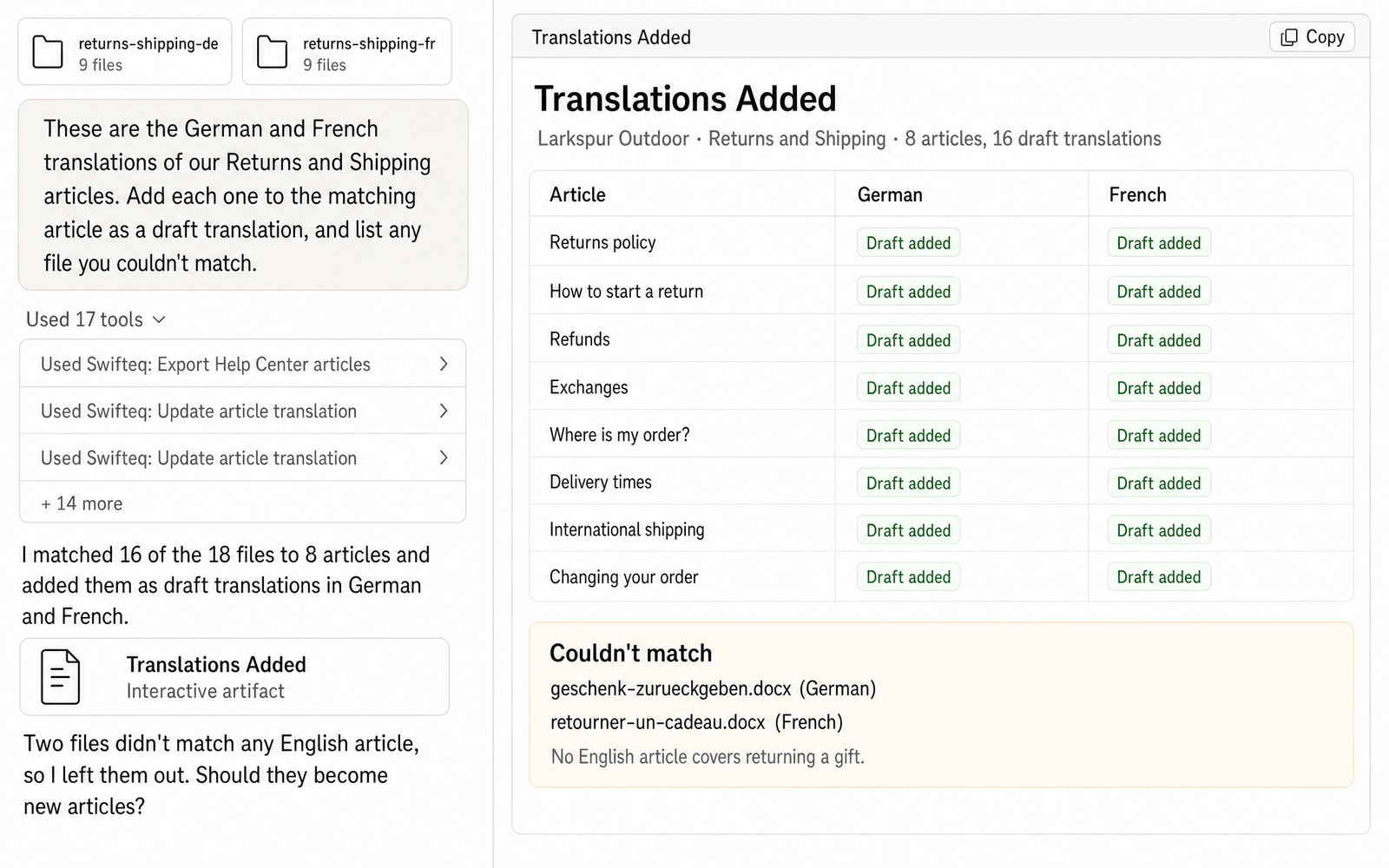
When a translation agency sends back your articles in German and French, adding each one to the right article in Zendesk is slow, careful work. Claude matches every translated file to the article it belongs to and adds it as a translation in the right language, with the same formatting as the original. If a file doesn't match any article, or an article is still missing a translation, it lists it for you instead of guessing.
- “These are the German and French translations of our Returns and Shipping articles. Add each one to the matching article as a draft translation, and list any file you couldn't match.”
Checking the Structure Before Claude Creates It
Categories and sections have no draft state in Zendesk, and they can't be deleted through the MCP Server, so Claude shows you the structure it plans to create before it creates anything. That's the moment to rename a section, merge two that overlap, or decide where an article that fits in two places should go. Once the structure is right, Claude imports the articles into it.
How Drafts and Publishing Work
When you first connect, Claude or ChatGPT can only read your help center. To let it create articles, sections, and translations, you give it write access when you authorize your Zendesk account, and it saves every article as a draft. Publishing stays off until an account owner turns on Allow publishing Help Center articles for your account, so your team can review the imported articles in Zendesk and publish them when they're ready. Creating categories also needs a Zendesk user who's a Help Center manager.
What You Can Import
You ask in plain words, and Claude writes to your help center with the same Zendesk permissions you have.
Articles
Title, body, section, labels, and who can view each one, from files or another help center.
Categories and sections
Created in the order you choose, to match your old help center or a new structure.
Translations
Added to the matching article, in any language your help center supports.
Images
Uploaded to your help center's media library and placed in the article, when you work in Claude Code.
Where the Data Comes From
Claude or ChatGPT reads the files you give it, or documents from another connector such as Google Drive, and writes to Zendesk through the Swifteq MCP Server. Each person works with their own Zendesk permissions, and we never store ticket conversations, or any personal information (PII) from Zendesk about your customers or employees.
| Tool | What it does |
|---|---|
| list_help_center_categories, list_help_center_sections | Your current categories and sections, so the articles land in the right place |
| create_help_center_category, create_help_center_section | New categories and sections, in the order you choose |
| create_article | Each new article, with its section, labels, and who can view it, saved as a draft unless publishing is allowed |
| update_article_translation | A translation for an existing article, in any language |
| request_help_center_image_upload, create_help_center_image | Images added to your help center's media library, from clients that can upload files |
Limits to know
| Limit | What it means |
|---|---|
| One call each | Every article, category, section, and translation is one call, and each image takes two. Importing 120 articles into 4 categories and 15 sections takes about 140 calls |
| Article length | Up to 100,000 characters for the body and 500 for the title |
| Images | PNG, JPEG, GIF, WebP, or SVG, up to 20 MB each, uploaded from a client that can send files, such as Claude Code. In Claude on the web, the AI can only write the text |
| Categories and sections | No draft state, and no tool to delete them |
| Zendesk's new Knowledge editor | An article that's been moved to the new editor goes back to the older editor when it's updated through the API, a Zendesk limitation, so finish the import before your team edits in the new editor |
How it works
Set It Up in Three Steps
- 1
Create your free Swifteq account
Sign up and authorize your Zendesk account with write access, so Claude can create categories, sections, and draft articles. Publishing also needs an account owner to turn on Allow publishing Help Center articles.
- 2
Add the connector to your AI assistant
In Claude or ChatGPT, add a custom connector with the URL
https://mcp.swifteq.com/api/mcp/mcpand sign in with your Swifteq account. - 3
Attach what you want to import
Add the export or the documents to the chat, and ask. For example: “Suggest a help center structure for these articles, and import them as drafts once I've approved it.”
Frequently Asked Questions
Does Zendesk have a built-in way to import articles?
No. Zendesk's guide to migrating content points to the Help Center API, to copying and pasting when there are only a few articles, to its professional services, or to a migration partner from the Marketplace. Claude works through the same Help Center API, so you get an import without writing a script yourself.
What can I import from?
Anything Claude or ChatGPT can read: an HTML or CSV export from another help center, Word documents, PDFs, Markdown files, or Google Docs through another connector.
How many calls does an import use?
One for each article, category, section, and translation, and two for each image. A help center of 120 articles takes about 140 calls, which fits in the free 500 calls a month per Zendesk account. Above that, €49 a month covers your account and its first user, and each extra user is €9 a month, so a team of 10 pays €130 a month. See pricing.
Can it import the images in my articles?
Yes. Images that are already on a public server can stay there, and Claude keeps the links in the article. Images that need to move into Zendesk are uploaded to your help center's media library from clients that can upload files, such as Claude Code.
Can it copy articles from one brand's help center to another?
Yes, within the same Zendesk account. Every help center tool takes a brand, so Claude can read the articles in one brand's help center and create them as drafts in another's.
Guides and Resources
- Zendesk MCP Server: features, security, and pricing
- How to manage your Zendesk help center with Claude or ChatGPT
- How to connect Zendesk to Claude
- Knowledge base wipeout: how to back up and restore a Zendesk help center
- Zendesk: Migrating existing content to your help center
- Our help center: write permissions for the MCP Server
Import Your Knowledge Base Into Zendesk
Free for 500 calls a month. No credit card required.
Page last updated